
Quick Start Guide
Download Quick Start Guide.
Welcome to JoinCloud!
In this guide, you will learn the basic settings required to run JoinCloud successfully.
JoinCloud Installation
You can download the JoinCloud setup file from this link. Download.
During installation, keep the default options and click the “Next” button to continue. Installation requires you to run the setup package with administrative privileges.
The installation process is described in detail here: JoinCloud Installation
JoinCloud First Run
After the installation, your computer needs to be restarted. Once restarted, you need to run the “JoinCloud” program from the start menu. (In case, it does not start automatically)
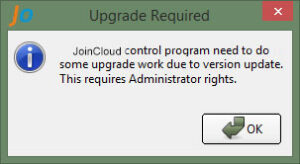
When you run “JoinCloud” for the first time, it will prompt you for the upgrade. Click the “OK” button to start the upgrade process:
After you click the “OK” button, a unique identifier is created and is displayed in the information prompt:
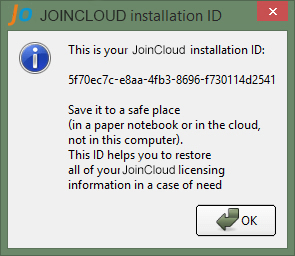
For more information about the identifier, click this link: Installation ID of JoinCloud.
JoinCloud Activation
Once the installation id is created, the program will restart itself. A prompt will open and show you two options:
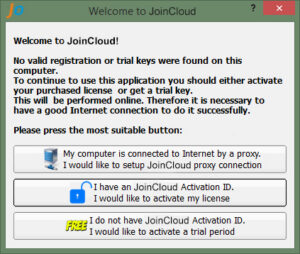
Make sure the computer has internet access. Click the 2nd option if you have an activation key and activate JoinCloud. Or click the 3rd button if you want to use JoinCloud in trial for 14 days.
If you are using the internet through a proxy, then you need to configure the JoinCloud to use proxy settings. For detailed information, click this link: Configure JoinCloud to use Proxy Server.
Assigning Monitors
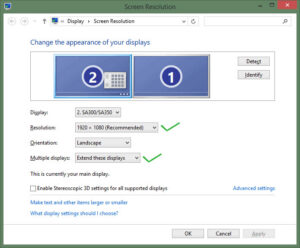
Once JoinCloud is installed, you need to connect all monitors and set their native resolution. You also need to put all monitors in extended desktop mode. To do this, right-click on the desktop and choose “Screen Settings” or “Screen Resolution” (depending on the OS version it is different). Once you open the window, set the necessary monitor settings. In windows 7, the settings window looks like this:
Now, open the “JoinCloud” Control Panel and then click on the “Workplaces” tab to assign monitors for each seat. The easiest way to assign monitors is to drag them into the rectangular area under the desired seat. The “Spare Parts” section contains unassigned devices including a keyboard, mouse, and monitors.
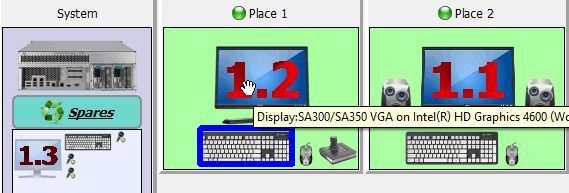
By default, when you start “JoinCloud” for the first time, all monitors are assigned to the first seat and some of them can be in the “Spare Parts” section.
To know which monitor corresponds to each monitor in the settings of JoinCloud, you can check it from the device’s tooltip but hovering over it or by clicking “Indicate Device” from the context menu for the monitor icon.
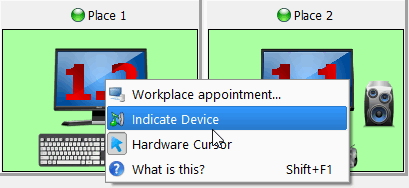
For more information regarding Indicating devices, click here Indicating Devices.
Enabling JoinCloud and launching the workplaces
After you complete steps 1-3, you can enable “JoinCloud”. To do this, click the “Enable JoinCloud and reboot PC” button on the “General Settings” tab. After the computer restarts, JoinCloud will be enabled, but workplaces will not start working. You need to click the “Start Workplaces” button to start the workplaces manually. This is required to test the status of the workplaces. Later, you can configure JoinCloud to automatically run the workplaces by selecting the desired launch option from the drop-down list:

Assigning Other Devices
You can assign other devices such as keyboard/mouse, game page, and audio playback devices after JoinCloud is up and running. To assign these devices as well as monitors, simply drag and drop the device’s image under the desired workplace. When a device is active, it will be enclosed in a blue frame on its image, like when you move the mouse or press a key on the keyboard.
For more information on assigning devices, see this link Device Allocation.
Known problem and their solution
In most cases, the above steps are enough to run JoinCloud workplaces successfully. However, in case it does not work, you can follow the steps below:
-
Make sure that only drivers are installed for graphics cards (especially NVidia cards.).
Incompatible software
The software which is incompatible with JoinCloud can be conveniently divided into two groups:
1. The software has to be obligatorily uninstalled before installing /starting JoinCloud. This group includes the whole list of JoinCloud analogs: BeTwin, SoftXpand, WM Program, and other similar software.
2. Potentially/nominally incompatible software which has to be uninstalled in the first place, in case there are some troubles with PC operation – these are the utilities which are installed with the video driver automatically. The video driver should be installed in the selective mode only for the video/audio driver. This is an incomplete list of utilities:
-
NVIDIA 3DVision
-
NVIDIA GeForce Experience
-
VulkanRT
-
AMD Gaming Evolved
This group also includes the software for the fine-tuning of the video card, benchmarks, and other software working with the video driver at the low level:
-
MSI Afterburner
-
RivaTuner
-
-
Assign monitor in simple order, i.e. the monitor 1.1 on the first workplace, the monitor 1.2 on the second workplace, etc. You can set monitors in any order depending on the requirement.
-
You can contact our support by clicking the “Request Support” button
 in the JoinCloud window. For more details on requesting support service from JoinCloud refer to Technical Support.
 -
Read our JoinCloud User Manual, for answers to any question that you may have.