
Configure JoinCloud to use Proxy Server
If the computer is connected to the Internet through a proxy server, there may be problems when activating the activation code/ trial period, deactivating, or sending a request to the support service from the program interface.
In this case, you need to configure the JoinCloud to connect to the Internet through the proxy server. To do this, click the “Proxy Setup” button on the Advanced Settings tab, and enter the required data in the window that opens:
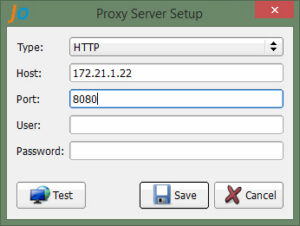
If you are already connected to a proxy server, the fields in this dialog will be filled with the available settings. Otherwise (or in the case of special settings), the settings must be filled in by yourself.
In the Type drop-down list, select the type of proxy server: HTTP or SOCKS5. You must also specify the name (or IP address) of the proxy server, the connection port. If the proxy server requires authentication when connecting, then you need to fill in the “User” and “Password” fields.
To refuse connection via a proxy, select the “No proxy” option in the list, the other fields, in this case, are not required to be filled and are inactive.
When all necessary fields are filled, it will be better to check the connection (click the “Test” button). During the check, the program will send an echo request to the JoinCloud license server, and in case of a proper response, a message will appear about the successful testing or error message in case of any problems. To save the settings, click the “Save” button. You can save the settings even if the connection test was not performed, or ended with an error, but, in this case, you will need to confirm to save the settings.