
Restoring license data from a backup
To view information about the program, the licenses, and the license holder’s information, check the About tab:
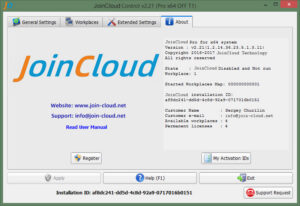
Restoration of JoinCloud licenses from the backup is carried out in the “JoinCloud Activation” dialog box (to open the dialog box, click the “Register” button).
Go to the “Restore / Deactivate” tab of this dialog (when switching to the tab there may be a delay of several seconds since the program is pinging the license server to get a list of backups).
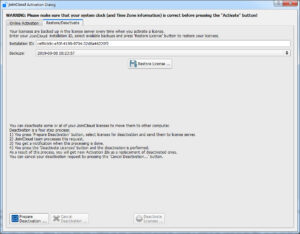
You should make sure that your ID is displayed in the “Installation ID” field, and if it is not, enter the correct one. This situation can arise as a result of loss of the identifier code due to system crashes, disk reformatting, etc. In such cases, the “JoinCloud Control Panel” program will create a new identifier code (See. JoinCloud Installation ID), and it certainly will not match the old identifier.
After entering the ID, the list of available backup copies for this ID will be updated. In the “Backup copies” drop-down list, select the copy you want (the items in this list are sorted by descending date of the copies creation, so the most current copy will be the first in the list).
Click the “Restore License” button. The program downloads the specified backup copy and restores all the license information stored in this copy. After that, you will need to restart the program (and if JoinCloud was enabled, then restart the computer) for the changes to take effect.