
Deactivate JoinCloud licenses
You can deactivate all licenses or some of the JoinCloud licenses. This can be useful when you want to transfer licenses to another computer or to correct the errors that occurred when the product was activated. For example, if the license was activated not on the computer for which it was intended.
Deactivation is carried out in the window “JoinCloud Activation” opened from the Restore / Deactivate tab and consists of several stages. As a result of the deactivation process, the licenses that you select will become invalid, and instead of them, you will receive new, equivalent licenses.
The first stage is to create a request to deactivate licenses. Click the button “Preparing deactivation”. A window with a list of valid licenses activated on this computer will open:
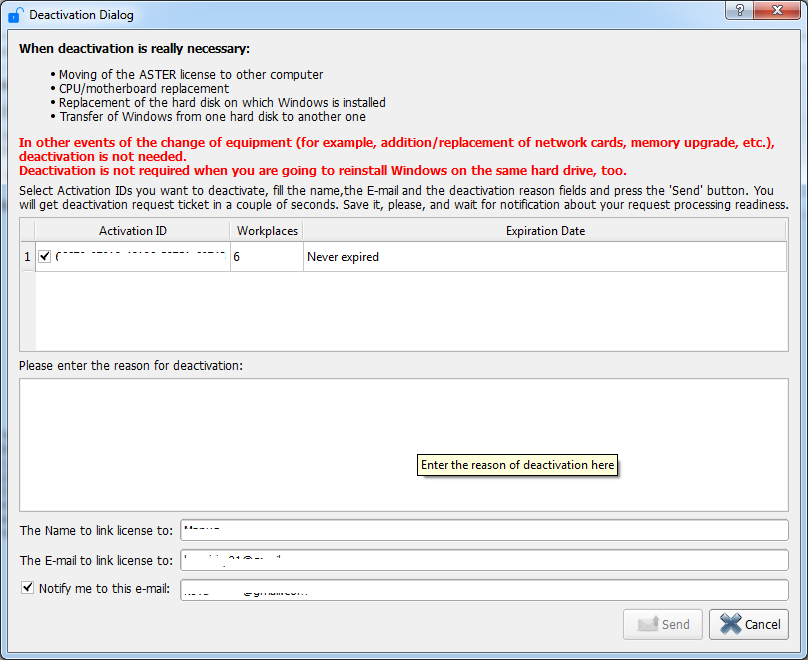
Select the licenses that you want to deactivate and enter a message describing the reason for deactivation and you can specify special wishes about deactivated licenses (for example, to link new licenses to other names and/or email addresses), though we do not recommend making such requests. You can change the name and address in the “Your name” and “Your e-mail” fields if necessary. This data will be used to generate activation codes, which you will receive in return for deactivated licenses. After the request is successfully sent, a message with a unique request number will appear. We recommend you save the request number just in case (for example, to reference it in the support request in case of any problems).
Due to the limitations of the license server, it is not possible to completely automate the process of processing deactivating the license from the requests, thus this process may take some time. While the license is requested for deactivation, you can still use JoinCloud. At each start of the JoinCloud Control Panel, it will check the readiness of deactivation data. Once the request is processed and executed, a notification will be displayed in the form of a pop-up window or notification in the system tray:
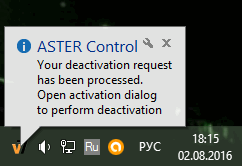
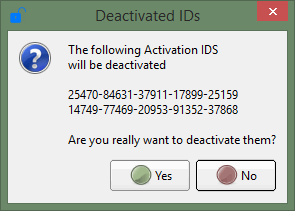
After receiving this notification, it is necessary to complete the deactivation procedure by clicking on the “Deactivate licenses” button in the JoinCloud Activation Dialogue window, there you can also cancel the deactivation using the Ctrl + Alt + Shift + X hotkeys. The program will contact the licensing server, consider the information required for deactivation and ask for confirmation of the deactivation operation. If the answer is yes, the selected licenses will be deactivated. New keys will be displayed after deactivation (information about the number of seats for each key will be indicated in brackets):
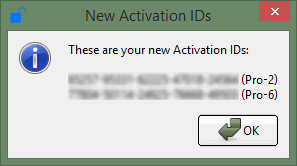
Copy them to a safe place and use the licenses at your discretion.
If for some reason you cannot save new activation codes (for example, accidentally closed the last dialog), do not worry. Just do the last step of deactivation again (starting with clicking the “Deactivate licenses” button) and get a new list of activation codes again.