Clearing JoinCloud license information
Some of the situations when there is a need to remove all JoinCloud license information from a computer are listed below:
-
The Home license was activated on the computer (and it is not over yet), and you want to activate the Pro-license on this computer (or vice versa). Home and Pro licenses cannot be activated on one computer, so you need to delete the previously activated license from the disk.
-
You want to clean the computer after deactivating the license (See. Deactivate JoinCloud licenses ) and transfer the license to another computer. For this case, it is not necessary to clear the license information as the license is unusable.
-
The computer has a long list of invalid licenses that were once activated on it. This list may be annoying to you, and you would like to get a “clean” list of the JoinCloud licenses. This can be done by removing all the license information, and then re-activate only the valid activation codes.
-
In rare cases, the JoinCloud support service can recommend you to clean licenses to troubleshoot or get a clean list.
In previous versions, this cleaning could be done by the following command:
'asterctl --clean-license'
This is executed in the Windows shell window, which is not convenient.
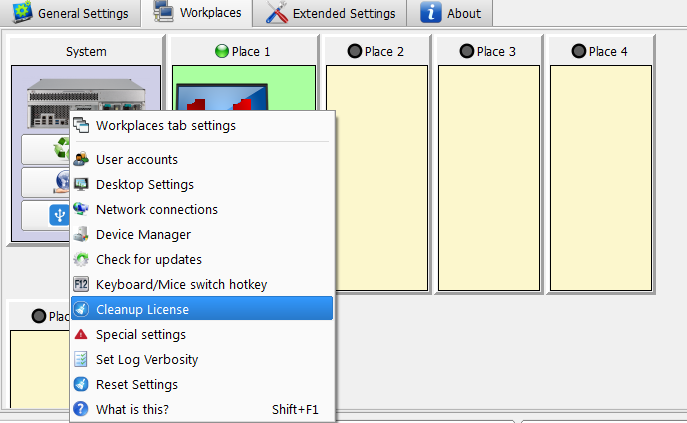
In version 2.17, on the “Restore / Deactivate” tab, Deactivate JoinCloud licenses right-click context option “Clear ASTER license information” was added for convenience.
The action of clearing the license information requires user confirmation, and if the answer is yes, you will be prompted to save the activation codes (See. Viewing keys activated on the computer).
You can still use the old method to clear licenses – via the command line.
The button for clearing the license is duplicated in the context menu of the image of the system unit in the “Workplaces” tab: