
Setup an automatic user logon
You can customize the workplaces (from the “General Settings” tab) to automatically log on with the credentials of a specific user.
To do this, you must specify a user name and password that will be used to automatically log on to the system. To open the account setup dialog box, click the button in the “Account” column next to the selected workplace.
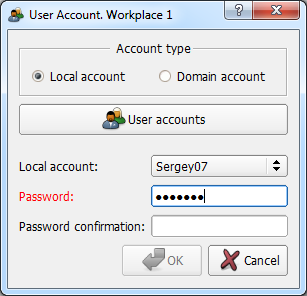
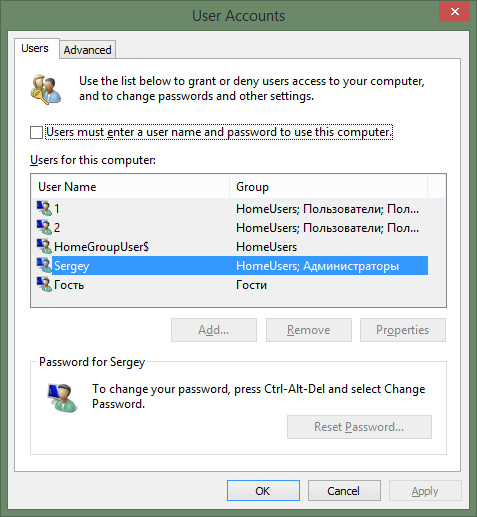
You can use both the local account for automatic login and (if the computer is connected to the domain) the domain account by selecting the appropriate option in the “Account type” switch. To configure automatic logon with a local account type, select the desired account from the drop-down list and enter the password in the password and confirm password fields. Selecting “Show login dialog” cancels automatic logon to the system from this workplace. The “Accounts” button opens the “User Accounts” system window where you can view and, if you have sufficient rights, add and edit accounts:
To configure automatic logon with the domain type of the account, you must enter the domain name, account name, and password with confirmation if the account has a password.
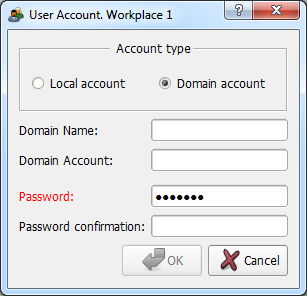
Click the “OK” button to accept or the “Cancel” button to discard the changes. To save changes permanently, do not forget to click the “Apply” button in the main window of the JoinCloud Control Panel.
On the “General Settings” tab, you can also selectively specify which workplace will be enabled and which ones will not. To do this, in the “Status” column next to the corresponding workplace, you must select the item “Enabled” or “Disabled” from the list (the first place cannot be disabled).
To prevent simultaneous logins on workstations by the same users, apply a special setting.