
“Extended Settings” Tab
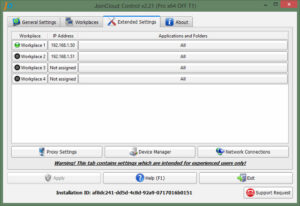
This tab is for advanced users. Any improper settings in this tab can have negative effects, so inexperienced users are not recommended to change them.
-
To assign an IP address to a workplace. Click on the “Not assigned” button next to the workplace. A window will open, where you can select the applications and folders to associate with the IP address and the IP address assignment rules.
-
The “Proxy Setup” button opens a dialog box to configure the JoinCloud to connect through a proxy server.
-
The “Device Manager” button opens the Devices Manager for the windows when you can create virtual network devices, if necessary. For example, if you do not have a real network adapter. The IP address of the devices can be assigned to the JoinCloud workplaces.
-
The “Network Connections” button opens the “Network Adapter” properties, where you can add IP Addresses to existing network adapters. These IP addresses can be assigned to the JoinCloud workplaces.