
Assigning Devices and Running Workplaces
Assigning Monitors
You have to assign monitors to each workplace before you enable the additional workplace. The rest of the devices can be assigned later.
When assigning monitors to workplaces, the following options are possible:
-
With only one graphic card, all monitors connected to it can only be used separately to run additional workstations. Thus, several jobs can be run on monitors connected to a single graphic card.
-
If there are several graphics cards, you can assign workplaces to individual graphic cards with all their monitors. Thus, each workstation can use its own separate graphic card (this scheme is recommended to achieve better performance for graphic applications, including games).
-
If there are several graphic cards with the ability to connect two or more monitors to separate graphic cards. All connected monitors can be used individually or in groups to run additional workplaces, provided that workplaces with multiple monitors are assigned their own separate graphic cards (in other words, a workplace with multiple monitors cannot share any of its graphic cards with another workplace).
When you first run the “JoinCloud Control Panel”, all monitors are assigned to the first workplace. Assignment of a monitor (and any other equipment) to a workplace is easy, just Drag & Drop the monitor icon to the desired workplace. Do not forget that you can expand the “System” panel to see all the devices.
Not all devices can be assigned to the workplaces since there are conflicting configurations that will prevent them from being assigned. In the simplest cases, the restriction is illustrated when you try to drag a device by a change in the mouse pointer (a prohibiting sign will appear, a crossed circle).
In the case of monitors, it is very easy to get a conflict and it is not easy to avoid or resolve it. Therefore, for monitors, the conflicts are resolved automatically.
When dragging a monitor to the workplace area, the configuration is validated, and if conflicts are found, the situation will be transformed into a conflict-free one according to certain rules set in the program. In this case, monitors that are removed from the workplace in order to resolve the conflict are placed in the Spare parts panel (and this panel will be opened if it was closed).
In addition to the drag and drop method, the device can be assigned through its context menu, namely from the window “Appointment to the workplace”. A dialog will appear, the appearance of which depends on whether the device allows sharing or not:
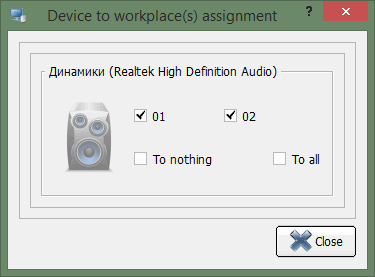
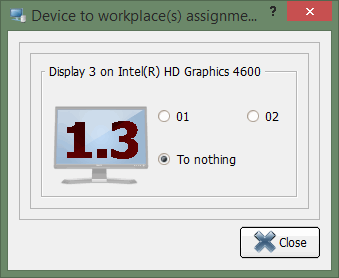
In the first case, you can check in front of several numbers, disconnect the device from all workplaces (send it to “Spare parts”, selecting the item “None”), or assign “All” (put in “General”).
In the second case, the device can be assigned only to one workstation or sent to the “Spare parts”.
Starting Workplaces
After the monitors have been assigned to the workstations, you need to enable JoinCloud (the “Enable JoinCloud and reboot the PC” button) and run additional workplaces. The program will ask you to confirm the restart, and if the answer is yes, the computer will be immediately rebooted:
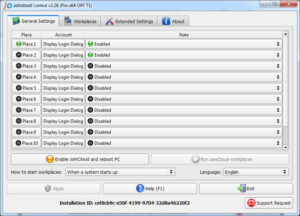
After enabling JoinCloud and restarting the PC, the workstations will start automatically or manually – depending on the selected startup method. On additional monitors, the Windows Welcome screen will display.
There are three options for starting workplaces:
-
Start Manually by clicking the “Run JoinCloud Workplaces” button. This option should be selected for the first test run of the workplaces. If the button “Start JoinCloud” is not available for clicking (inactive), most likely, this means that the settings made by the monitors are not suitable for starting additional workplace (or monitors were not assigned to the workplace). In this case, try to make another adjustment to the monitors, apply it and reboot the PC.
-
“When a system starts up”. This will start all start workplaces simultaneously once computers boot up.
-
When user logins on workplace 1. This option (as well as the first one) can be useful, for example, when using “Display Link” monitors are used, which are not ready for use when the computer start.
Workplaces that do not have a monitor at startup will not be started, but after connecting (ready to use) the monitor, they can be started “Start workplace” from the context menu of the workplace on the “General settings” tab. With the button “Run JoinCloud workplaces” you can start all the places at once. For workplaces that are already working (except for Workplace 1), the Force Relogin“ command will be available, which force log out from the system followed by an automatic login. Automatic logon is only performed if it was configured, otherwise, you will see the login screen.
Assigning keyboard and mouse
Keyboards and mice can be assigned to workstations after they successfully launch or can be assigned during the configuration of ASTER at the start.
The easiest way to do assign keyboard and mouse is the Drag-and-Drop technique or through the “Workplace appointment” item in the context menu of the device, as described above. If (when JoinCloud is on) the assignment of the keyboards and mice was not done correctly, and after setting it once, using the computer is difficult. So, you can reset the assignment by pressing CTRL + F12. You may need to press CTRL + F12 several times until all keyboards and mice are automatically assigned to the 1st workplace. After this, you can assign them correctly.
This hotkey is used rarely since the keyboard/mouse assignment rarely is incorrect. Some programs (for example, Adobe products) can use this keyboard combination (“CTRL + F12”) which can be inconvenient since the JoinCloud driver intercepts it before other programs.
In the context menu of the system unit, on the “Workplaces” tab there is a menu item “Keyboard/Mice switch hotkey”, which allows you to reassign a new key combination or even to disable it altogether.
After selecting this menu item a dialog will appear:
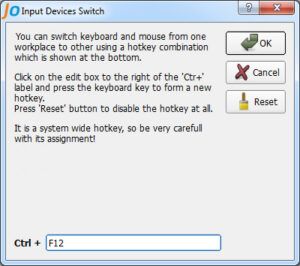
To change the hotkey, click the mouse in the input field at the bottom of the dialog and press the key you want to use in conjunction with the Ctrl key. Some common combinations (for example, Ctrl-F4, Ctrl-C, Ctrl-S, Ctrl-V, etc.) are forbidden to use for this purpose. To cancel this combination altogether, click the Reset button.
The new assignment will only be applied once the computer restarts.
Assigning Audio Devices
Sound devices (sound cards) can be assigned to individual workplaces or shared with all.
Assigning sound devices as well as other devices is done on the “Workplaces” tab. Each individual sound card can be represented as a set of sound devices of various types, which can be assigned to workplaces separately. Unlike other devices assigned strictly to one workstation, the sound device can be shared for several places and stored in the “General” tab.
New assignments of audio devices take effect immediately after you click the “Apply” button. However, to account for changes, you may need to restart any application in use when audio devices were assigned.
Assign USB-Hubs
A USB hub can be assigned to a workplace and then all the devices connected to that USB hub will be automatically assigned to that workplace – this only applied to devices that can be assigned in the usual ways, like Keyboard, mouse, sound devices, web camera, game controllers, USB monitor, as well as additional USB hubs chained to it (along with the devices connected to the chained hub). USB hub simplifies the process of assigning devices, and also allows you to replace any equipment without changing ASTER settings, which is convenient with a large number of workstations and devices.
Assigning USB hubs to workplaces allows auto-assigning devices and also performs restrictive functions:
– Prevents all workplaces (except the workplace for which the USB hub is assigned) access to optical (CD\DVD) drives and disks connected to the designated USB hub.
– Disks and Optical disks (CD\DVD) drives connected to the USB hubs are displayed in the explorer only at the workplace for which the hub is assigned, but only if the “Hide empty disks” and “Do not show hidden files and folder” options are enabled.
These restrictive functions are enabled by default, to disable them, apply a special setting disableFSF
USB hubs are displayed in the Settings in the form of icons (a screen with notches) with red notches- the more notches the larger the depth of nesting in the USB tree, the root hub has no notches. Dragging into places usually requires the deepest hubs – it’s better and more convenient to do this from the USB tree window (USB Screen of the tree). To assign all the hubs from one branch of the USB tree is enough to assign the parent(main) hub.
The icons reflect the type of hub:
 – Root Hub
 – USB-3.0 (SuperSpeed) hub
 – USB-2.0 hub
USB 3.0 hub may not be seen as a single hub by the system, instead is seen as 2 hub – USB 3.0 and USB 2.0 hubs so when dragging done, two hubs will be dragged to the workplace, in this case, a dialog box will open to choose the hub to assign to the workplace:
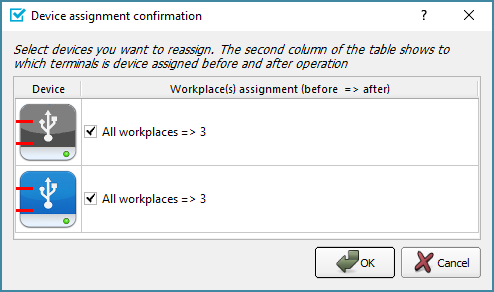
By default, it is better to leave both hubs to the workplace (i.e. both USB 3.0 and USB 2.0 USB hub) since both hubs are from the same hub, but if you want, you can un-check the undesired hub from the dialog box.
The hub can be dragged either to the workplace or to the “Spares” panel. When dragging to “Spares”, devices connected to the hubs will be assigned to the workplace that was previously explicitly set for these devices (by default or by explicitly setting to the workplace).
After the hub is assigned to the workplace, the devices connected to it cannot be dragged to another workplace (or “Spares” panel). From this point on, devices can only be dragged by dragging the hub to which they are connected. Dragging a hub into the “General” panel breaks this hard link, after which the connected devices receive an explicit assignment to the places specified by them earlier (that is, as it was before the hubs were assigned) and again it becomes possible to drag the devices to other workplaces.
There is one important exception to this “hard” rule, and this is the USB hub. That is, a hub connected to the designated hub can still be dragged to another workplace, or to the “Shared” panel. This allows you to organize a cascade connection to USB devices to different workplaces. For example, we assign a hub to a workplace, connect a second hub to it, which we assign to another workplace. This creates a chain of hubs. This allows you to bypass the limits on the number of USB ports available in the computer and saves on the length and quality of USB cables. However, it is better not to use many chains, as this will affect the stability of the connected USB devices and their performance.