
Indicating Devices
One of the questions that arise when assigning monitors (and other devices) to workstations: “How to compare the real computer equipment and the equipment image in JoinCloud?”
Several methods are implemented to make it easy to find out the devices:
-
When you hover your mouse over the device image, a tooltip with the device name pops up. For monitors, this is a monitor model (if it can be determined) and also mentions which video output it is connected to, as well as the video adapter model. This method is not very useful if many video cards from the same manufacturer are used on the system.
-
Some equipment (like keyboard, mouse, speakers) are able to indicate their activity. For example, when you press keys or move the mouse, images of the corresponding devices are surrounded by a blue frame which indicates their activity.
-
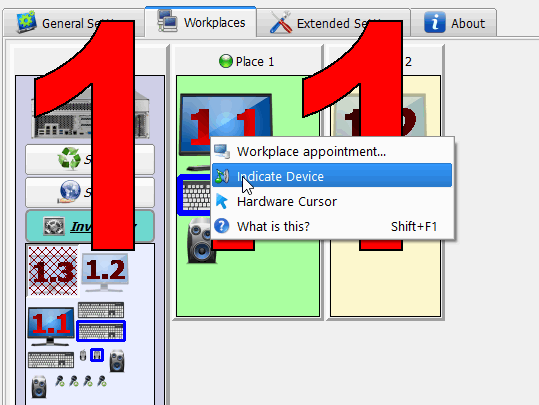
Some devices allow you to set the device self-indicating device. If the context menu of the device contains the item “Indicate Device”, then this indicates that the device is self-indicating. When selecting “Indicate Device” from the context menu of the device icon, the indication of the corresponding physical device turns on for a few seconds. The method of indication depends on the type of device. For example, for monitors, the indication is performed as follows: on the corresponding real monitor, the monitor number will be highlighted (This is one or two numbers, the first of which is the serial number of the video card, the second is the video output number of this card). By the monitor number, you can easily compare the real device and its image to JoinCloud. Indication of audio playback devices (speakers) is performed by playing a small melody through the corresponding audio output.
-
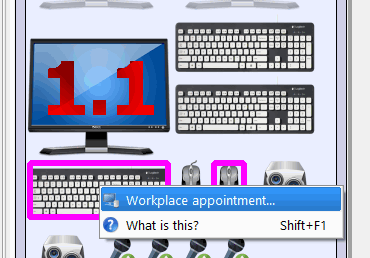
Another way to map the image and real equipment is the “disconnect / connect” method. If the device allows a “Plug n Play” connection (for example, a USB device), you can disconnect (remove) the device and after a while connect it back (insert). In JoinCloud, the newly connected device will be surrounded with a flashing purple frame, and if necessary, the corresponding panels of the “System” area will be opened, and the “Workplaces” tab will be scrolled so that the device image is visible on the screen:
Hardware and software cursor
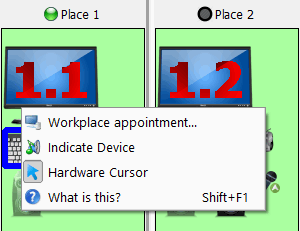
From the context menu of monitors, you can switch the workplace to use “Hardware cursor”.
It appears only for video cards that have several monitors connected to them (for multiple workplaces). This switch allows you to specify which type of pointer to use for this monitor. If the icon representing the pointer is highlighted in gray, then the hardware cursor is used, otherwise – the software cursor is used. When you click on this item it changes the settings to the next:
The software pointers of the mouse are completely independent of each other, but they can interact incorrectly with graphic-intensive applications (they can sometimes leave traces when moving or disappear completely from the screen).
However, hardware pointers do not interact with graphic in applications (and does not leave traces or disappear from the screen), but on monitors connected to one graphics card, the mouse pointers cannot have different shapes.
Hardware mouse pointers are better suited for games and full-screen graphic applications, where a clear drawing of the pointer is more important than its shape. For other applications, the software pointers are better suited. Different monitors of the same graphic card can use different types of the mouse pointers (for example, the monitor of the “gaming” workplace can use the hardware, and the rest – software pointers).